Tutorial 4 of 4
Full screen, controls, settings and calm mode
Beginner 5 min
Play in full screen on any device, use a gamepad, choose the camera and graphics quality, turn on calm mode and keep your progress as a file.
Pinquest adapts to your screen and your device. Everything here is in Options (the gear button on the start screen, or Esc → Options during a game).
Full screen
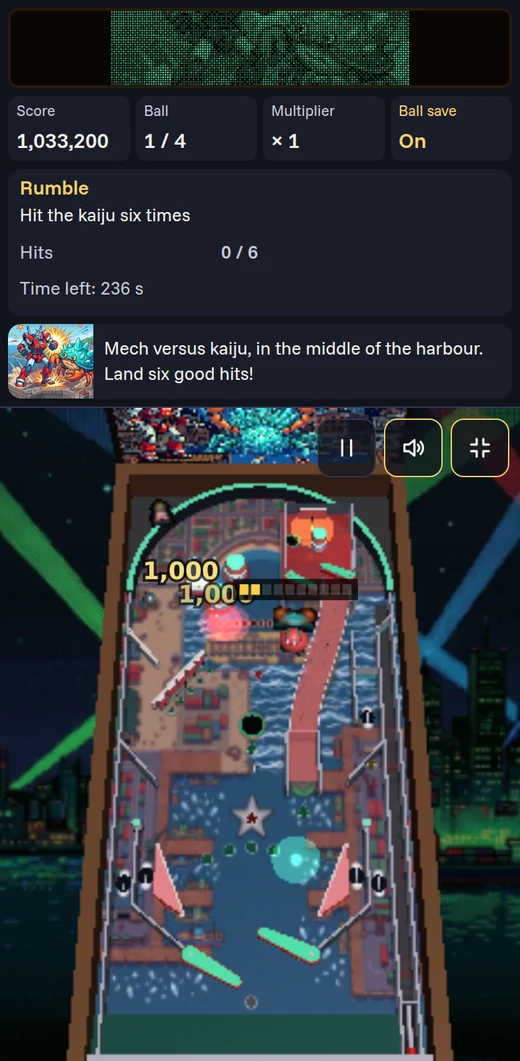
Press F or the full-screen button at the top right. Wide screens show the table with the backglass, display and mission panel beside it; tall screens and phones put the display on top. Press F or Esc again to leave full screen. iPhones do not allow full screen for web pages, so there the game covers the page instead.
Controls
Controls (or ?) lists every key. Under Flipper keys you can move each flipper to a key of your choice: press Left flipper or Right flipper, then the new key (Esc cancels). Picking the other flipper's key swaps the two, and Reset to Shift keys goes back to the start. Z, M and the arrow keys always work too; Esc, F, V, H and Tab stay reserved for their own jobs. The choice is saved with your progress.

Pinquest also works with a gamepad: shoulder buttons or triggers flip, A pulls the plunger, the left stick nudges and Start pauses. On phones and tablets, the left and right halves of the table are the flippers.
Camera and graphics
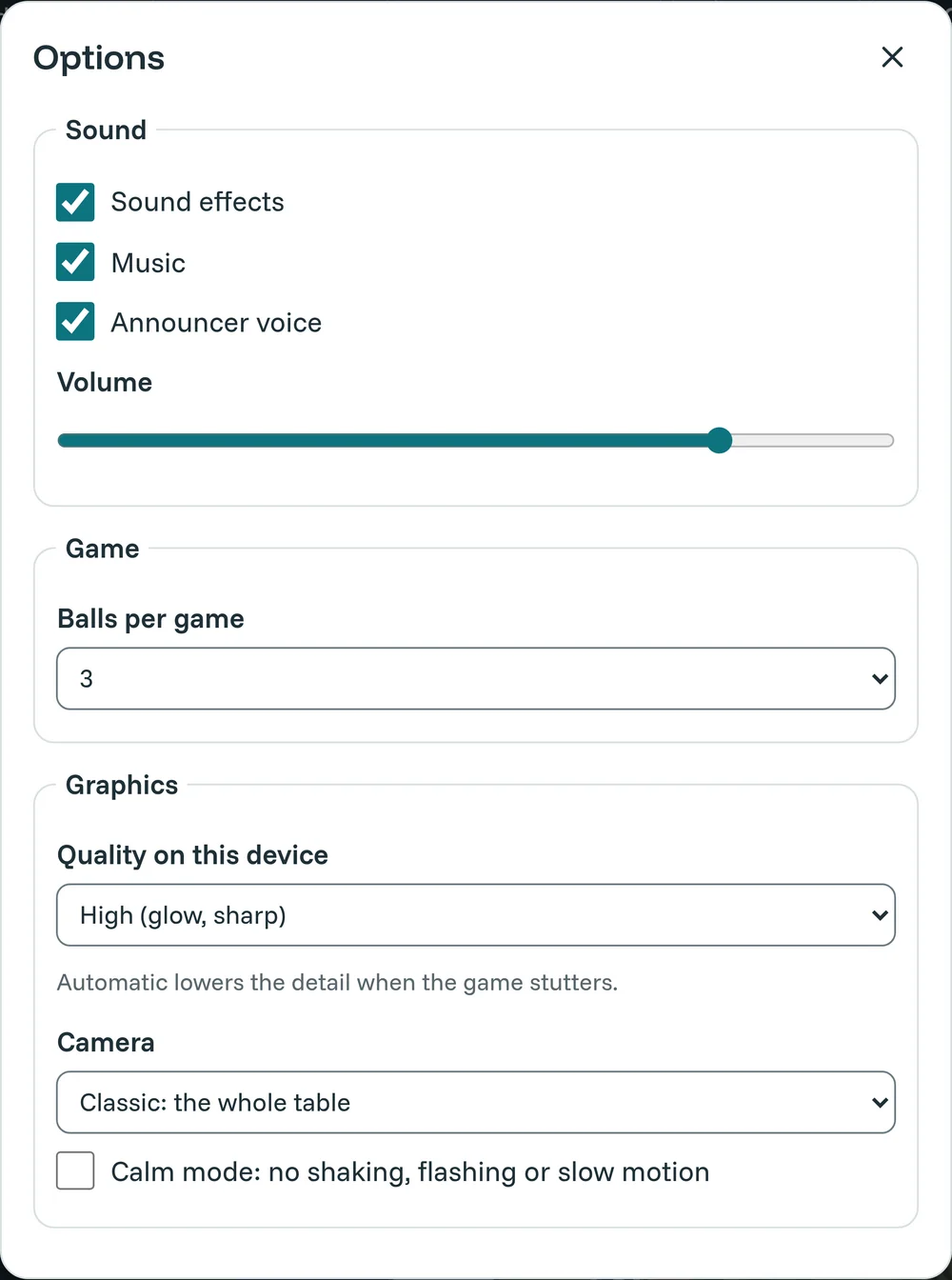
- Camera: Classic shows the whole table, Low sits closer to the glass, Follow the ball moves with the ball (it pulls back during multiball), From above is a flat view.
- Quality on this device: Automatic starts high and lowers the detail by itself when the game stutters. Low helps older phones; Flat 2-D view draws the table from above without 3D graphics.
Sound
Sound effects, music and the announcer voice each have their own switch, plus a volume slider. V turns all sound on or off during a game. Nothing plays before you start a game.
Calm mode
Calm mode turns off camera shaking and camera moves, screen flashes, blinking lights, display animations and slow motion, and keeps particle effects small. It is switched on automatically when your device asks for reduced motion. Missions, scores, drains and ball saves are also announced to screen readers.
Keep your progress
High scores, finished missions and achievements are saved in this browser. High scores → Download progress file saves them as a .pinquest.json file; Open progress file… loads one again — for example on another computer. Signed in, you can also keep the progress in your Google Drive.
Ready to try it?